How to
How to make a phone app with AI
Pick Mobile app in the generator, base it on one of your websites or not, describe what it should do, press Generate app and check every tab in the phone and tablet frames.
Sites4 min readUpdated
This guide shows you how to make a phone app with AI: an iPhone and Android app that OneCraft designs and codes from your description, which you then change by chatting.
An app starts the same way as a website, from a few sentences and a name. The difference is one choice at the top of the generator, and an optional link to a website the app should follow.
Website or app, chosen once
From the dashboard, click Website & app, then Build with AI. Under What are you making? pick Mobile app (“An iPhone and Android app the AI builds; you change it by chatting”). The page title changes to Create a mobile app with AI and the fields change their wording to match.
This choice is for good. A site is a website or an app from the moment it is created, so if you want both, make them as two sites. For a website, see how to create a website with AI.
Basing the app on a website
Under the description sits Based on a website (“Optional. The app takes the website’s colours, fonts, content and data.”). Open it to pick:
- No website, to start from your description alone.
- One of your own websites, listed by name.
- Another website (web address), then paste its address.
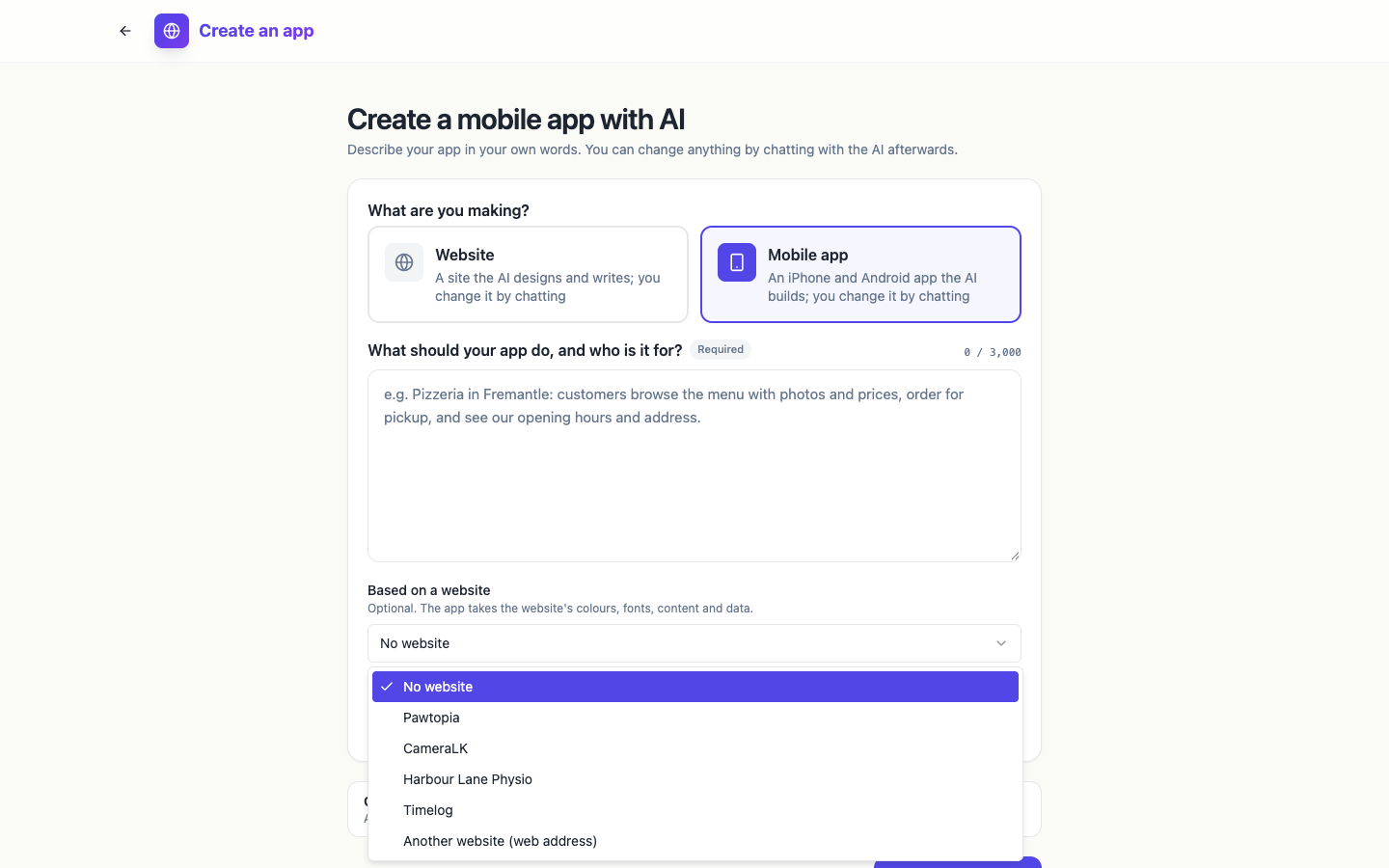 Pick one of your websites and the app picks up its look, its words and, if it has one, its database.
If you mention a web address or the name of one of your websites in the description, the generator spots it and shows “Based on …” with a button to clear it.
Describe the app
Fill What should your app do, and who is it for? Say who opens the app and what they do in it, screen by screen if you can: “customers browse the menu with photos and prices, order for pickup, and see the opening hours”. Up to 3,000 characters. Then type the Business or app name. Both are required.
Options holds the same choices as for a website: brand kit, language, tone, colours, images, pages and contact details. Press Generate app. The app builder opens when the app is ready.
Checking the screens
The app builder shows the app in a phone frame, with Chat and Files on the left and Build for your phone on the right. The note above the frame reads “Web preview: the phone app looks the same, with native controls.”
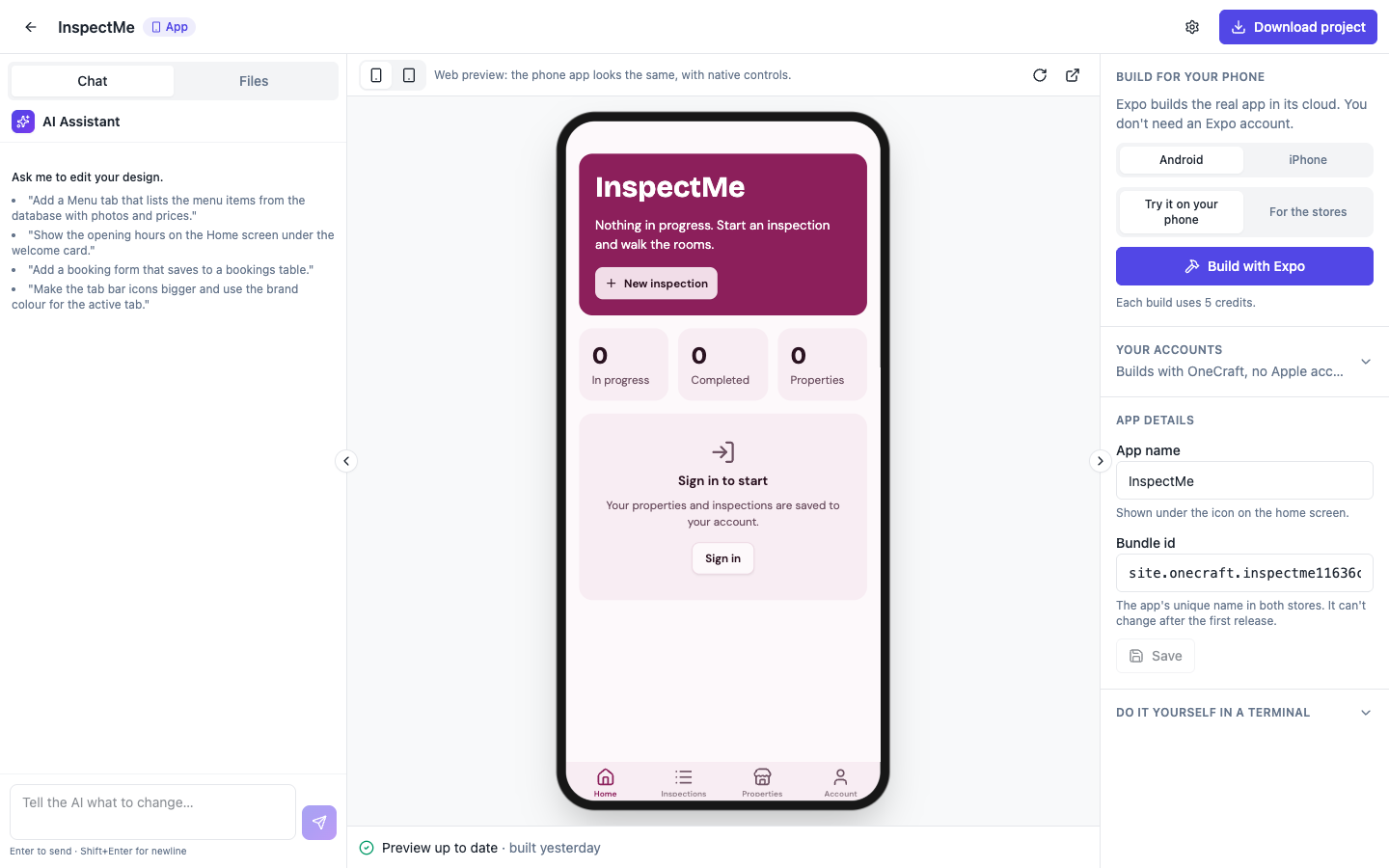 The frame is a working preview: tap the tabs at the bottom to move through the app.
Tap through every tab at the bottom of the frame, and use the two buttons above it to switch between the Phone and Tablet frames. Look for the things a phone shows first: text that is too long for a button, a list that runs off the screen, a tab that has no content yet.
The Account tab
Every generated app ends with an Account tab. It holds Appearance with Light, Dark and Follow device, a Notifications switch, the sign in or sign out button when the app has a database, and About with the app’s name and version. The appearance choice is kept on each phone, so every person picks their own.
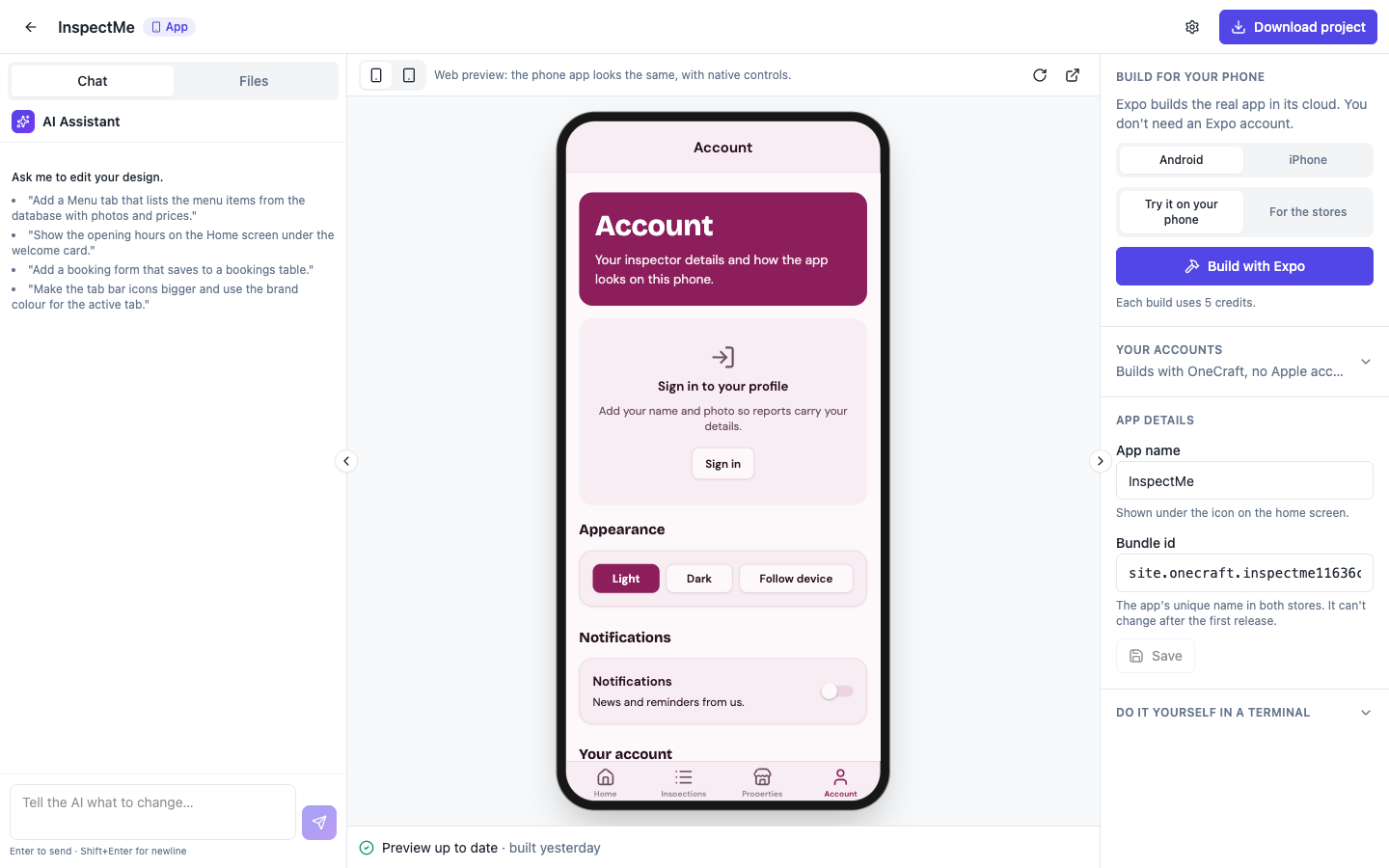 The Account tab is always last. Ask the chat to add your own settings to it.
What it costs and what comes next
App generations measured between 55 and 72 credits. Change anything by typing in the chat box (“Tell the AI what to change…”); each change is a new version.
When the screens look right, put the real app on your phone with how to install my app on my phone for testing. The website to mobile app page covers apps made from a website in more depth.
Ready to try it yourself?
Start free. Describe what you need and let OneCraft do the first draft.
Get startedSee it in the product
More sites tutorials
- How to create a website with AI, step by stepDescribe your business, give it a name, fill the options that matter, press Generate site and make your first change by chat. Every screen of the website generator, shown in order.
- How to install my app on my phone for testingBuild a test version of your app with Expo, scan the QR code on Android or add your Apple account for iPhone, and install the real app without a store. Costs and limits included.
- How to preview my website on my phoneCheck your website at phone width in the builder, then open the preview link on a real phone before you publish. What the 15 minute link does, and how apps differ.