How to
How to animate text in a video scene with an entrance
Add your own text to a video scene, pick one of 19 entrance animations such as Typewriter or Bounce words, set when it starts, and give it an idle motion like Float.
Promo Videos3 min readUpdated
This guide shows you how to animate text in a video scene: add your own line of text, give it an entrance animation, choose when it starts, and keep it moving with an idle motion.
A line of text that types itself out or bounces in word by word pulls the eye to it. That is what you want for an opening date, a price or a call to action, and it takes four clicks.
Add a text component
Open your video in the builder and move the playhead to the moment the text should appear. Then click the plus button at the top of the right rail. The Add component panel opens with the note “Drops into the scene at the playhead, animated to match”, and eleven tiles: Text, Image, Button, Icon, Sticker, QR code, Stat, Spotlight box, Highlight box, Mouse pointer and Zoom in.
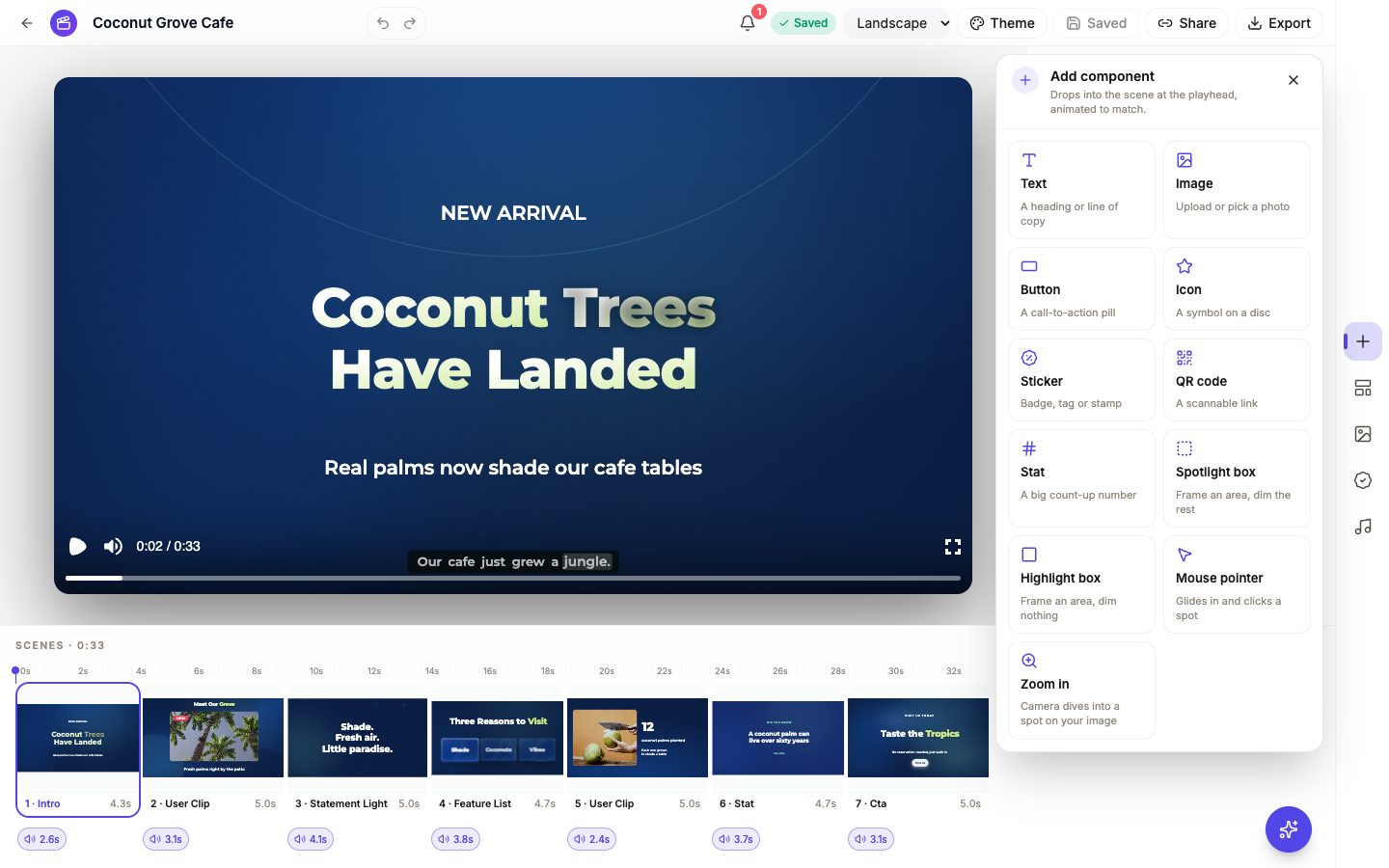 The new component goes into the scene under the playhead and borrows that scene’s entrance to start with.
Click Text. A “New text” line appears in the middle of the frame, already selected, and the inspector on the right shows it.
Write the line and place it
In the inspector’s Content section, replace “New text” with your own words. Then drag the text on the canvas to where it belongs and use the handles to size it, keeping clear of the scene’s own headline.
Pick an entrance
Under Animation, the first dropdown is the entrance. A new component starts with the same entrance the rest of the scene uses, so it fits in, and you can change it to any of these:
- For any component: Fade, Slide, Rise, Scale, Pop, Focus pull, Zoom settle, Stamp, Scale pop, Spin, Twist, Drop, Split and Glitch.
- For text only: Bounce words, Bubble pop, Slide words, Highlight words and Typewriter.
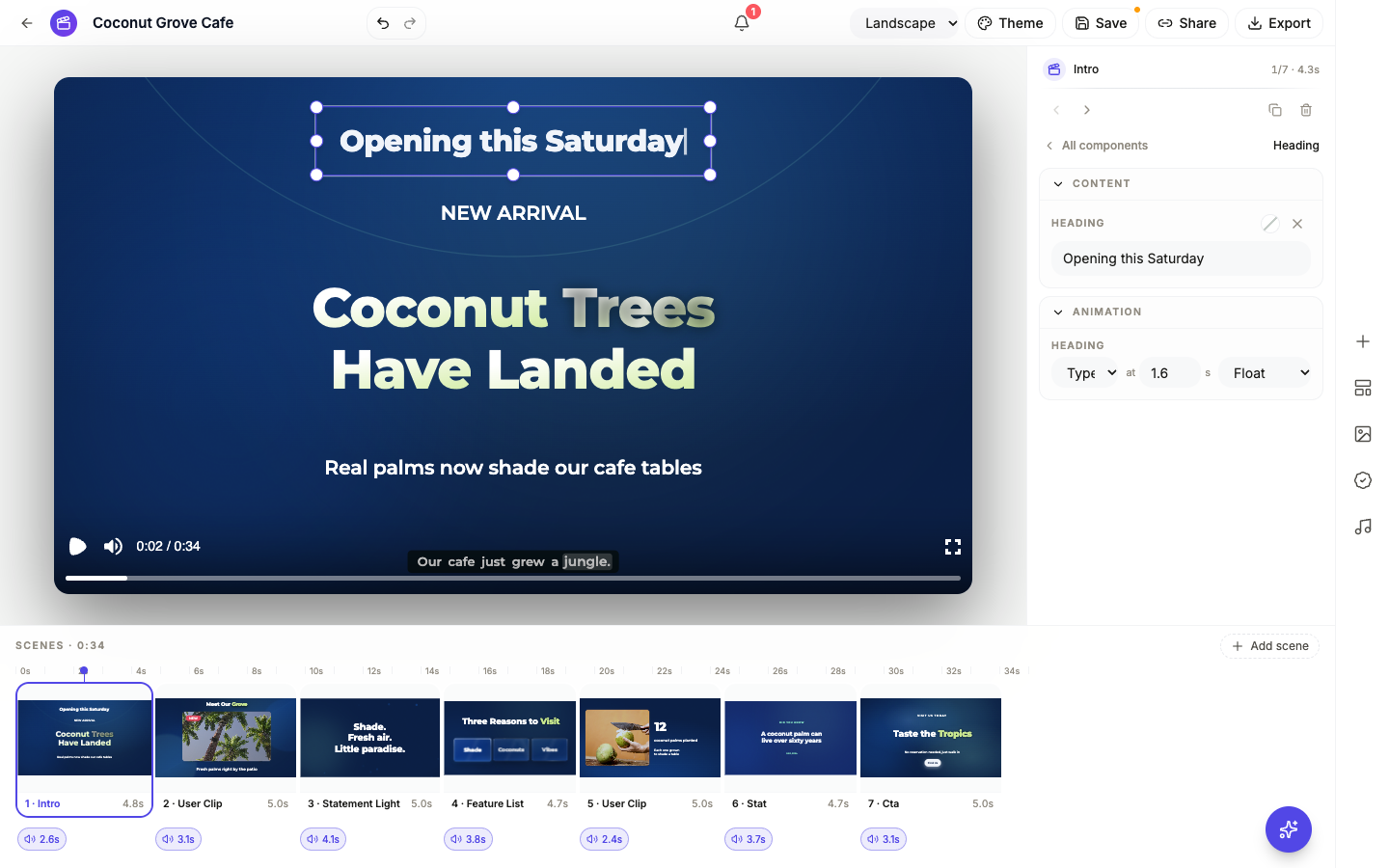 Typewriter types the line out letter by letter. The cursor in the preview shows it mid entrance.
The word by word entrances suit short lines: a date, an offer, a three word promise. For a long sentence, Fade or Rise is easier to read.
Set when it starts
The box after at is the start time in seconds from the beginning of the scene. A new component is timed so its entrance finishes right at the playhead, so if you moved the playhead first, the timing is already close. Type a smaller number to bring it in earlier, a larger one to hold it back until the voiceover reaches that point.
On the Dynamic pace, every entrance lands a little sooner than its set time, so play the scene to judge it rather than trusting the number alone. See set the pace of a video for what Dynamic and Calm change.
Keep it moving with an idle motion
The last dropdown is the idle motion: None, Float, Breathe or Pulse. It plays after the entrance and keeps the text gently alive while the scene holds. Float suits a headline or a sticker; leave long text on None so it is easy to read.
Preview and save
Press play and watch the scene through. When it looks right, click Save in the top bar; the builder does not save on its own, and an Unsaved badge shows until you do. To remove the component, select it and click the bin icon in the inspector.
Only components you add carry these controls. The text a scene came with keeps its own designed entrance, and the transitions between scenes are not editable. For the rest of the builder, see make a promo video with AI voiceover, and the animated number counter video page covers the stat scene that counts a figure up from zero.
Ready to try it yourself?
Start free. Describe what you need and let OneCraft do the first draft.
Get startedSee it in the product
More promo videos tutorials
- Add voiceover, captions and music to a videoGive every scene its own narration in the language and voice you pick, turn on captions, and add a music track that ducks under the voice automatically.
- Capture your screen and turn it into a tutorial videoShare your screen once, snap a shot for every step from a small floating button, then let OneCraft turn those shots into a narrated walkthrough video.
- Export one video for YouTube, Reels and TikTokBuild the video once, then switch between landscape and vertical and export an MP4 for each platform. Your edits are kept per format, so nothing breaks.