How to
How to add key numbers and references to a poster
Put a headline result in a Key Number block with its interval, and list your citations in a References block that numbers itself. Both live in the Poster section of Add items.
Flyers4 min readUpdated
This guide shows you how to add a key number and a references list to a research poster, using the Key Number and References blocks in the poster builder.
A poster has a few seconds to make its point. One big number with its interval does more than a paragraph of results, and a clean numbered reference list tells the reader the work stands on something.
Open Add items on a poster
Open your poster in the builder. If you do not have one yet, the poster template gallery has 40 boards; click Use template on one and it opens in the builder with sample content you can replace.
Click the plus button in the right rail to open Add items. On a poster page the panel starts with a Poster section of ten blocks: Section, Figure, Methods, Participant Flow, Procedure Steps, Key Number, Key Message, Comparison Bars, References and Authors. The usual text, chart and diagram tiles follow below it.
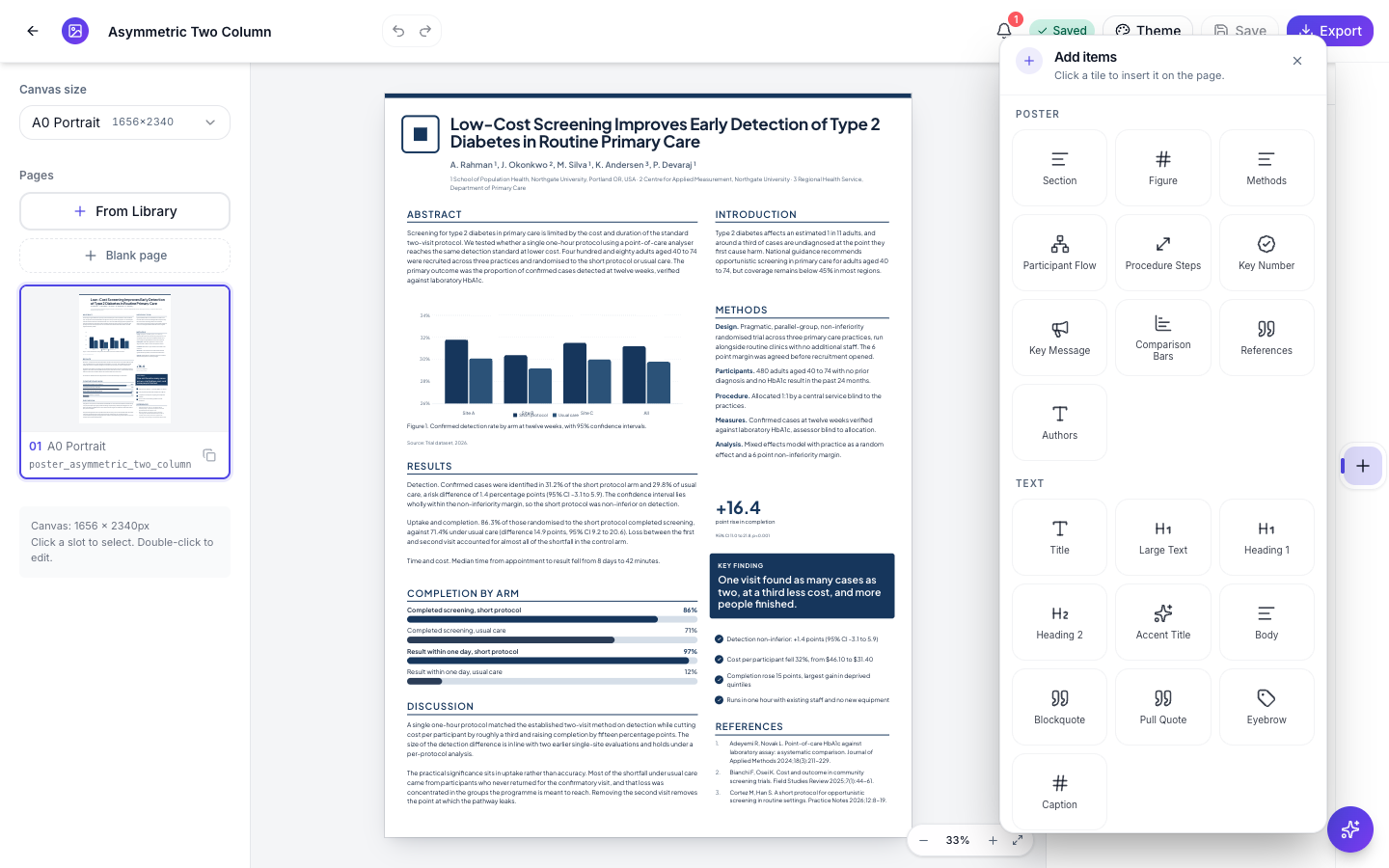 The Poster section only shows on poster sizes, A0 Portrait and A0 Landscape.
Click a tile and the block drops into the middle of the page you are on. Drag it to where it belongs and pull the corner handles to size it.
Add a key number
Click Key Number. A new block reads 32%, “What this number measures” and “95% CI 27 to 37”, so you can see what goes where. Click the block on the canvas and the inspector shows three fields under Key number:
- Value: the number itself, printed large. Keep the sign and the unit, for example +16.4 or 38%.
- Label: what the number measures, in a few words.
- Interval or p value: the uncertainty behind it, printed small underneath.
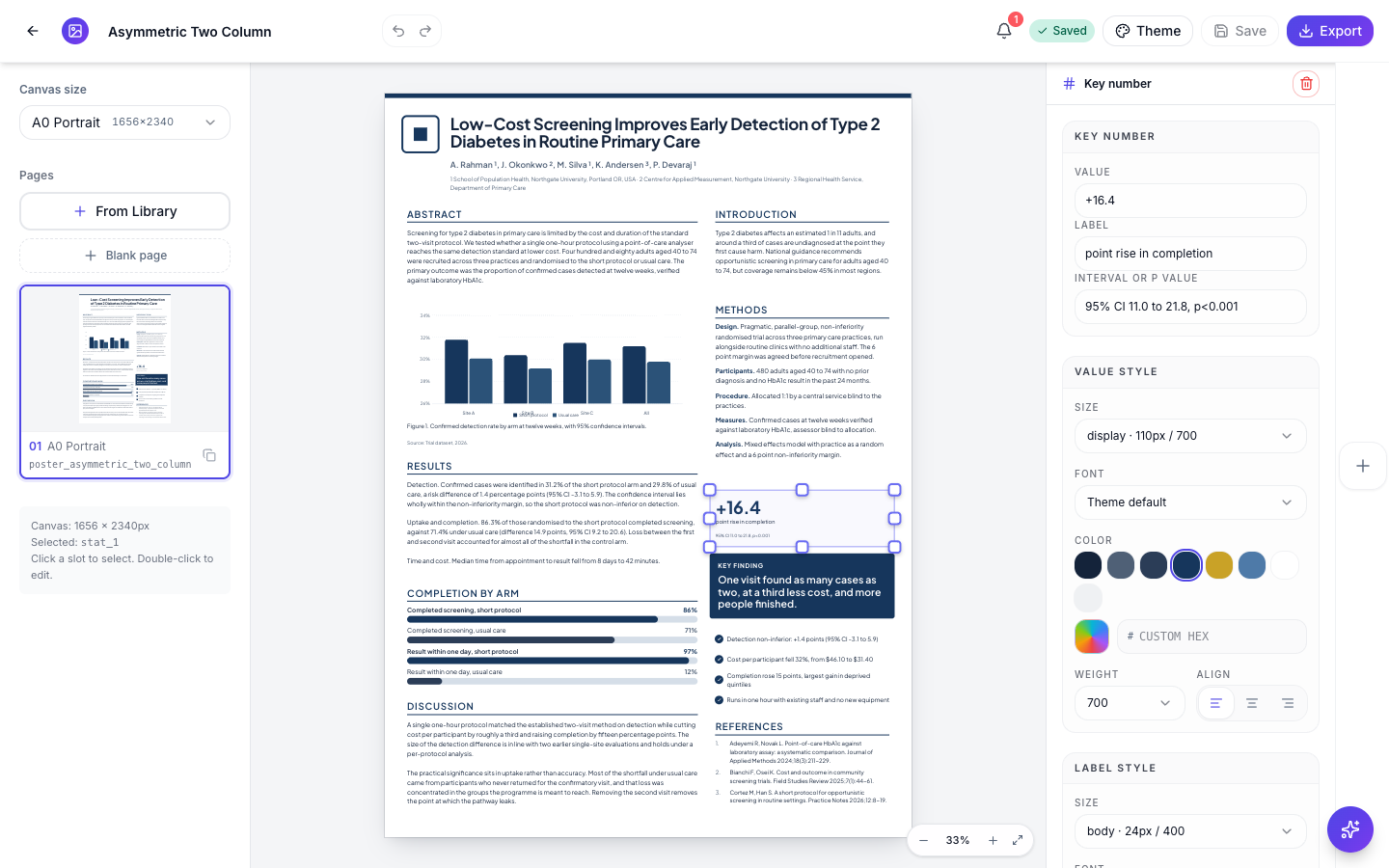 Value prints large, the label sits under it, and the interval goes in small type at the bottom.
Below the fields, Value style, Label style and Detail style set the size, font, colour, weight and alignment of each line on its own. The value takes the theme’s brand colour by default, which is usually what you want for the one number a passer by should remember.
Print the interval or the denominator that goes with the number. “+16.4 points” means little until the reader sees “95% CI 11.0 to 21.8”, and a reviewer at the board will ask for it.
Add your references
Click References in the Poster section. The new block arrives with a REFERENCES heading and two empty entries, and the inspector lists them as numbered boxes.
Type one citation per box. Click Add reference for another, up to eight in a block you insert, and use the bin icon beside an entry to remove it. The numbers on the poster come from the order of the entries, so you never type them yourself, and they close up when you delete one.
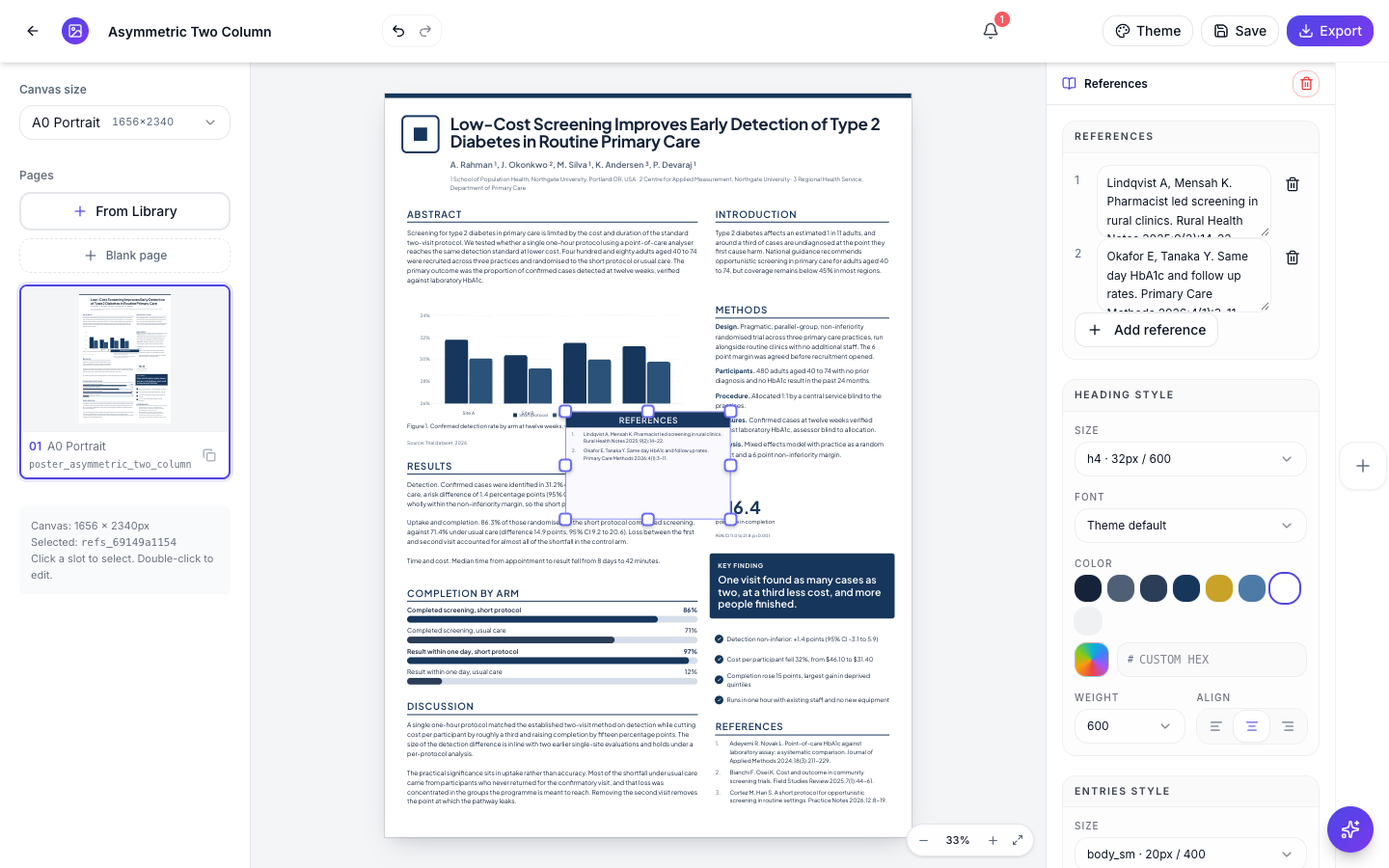 Type the citation only. The block numbers each entry and prints it under the heading.
Heading style and Entries style below the list control how the block looks. Most boards keep references small, so the space goes to the findings; check the text is still readable once the poster is printed at full size.
Many templates already carry a References block, filled with sample citations. Click it and replace the entries the same way. A template block can hold fewer entries than a new one, so when its Add reference button is missing, the block is full.
Save and export
Click Save in the top bar when the blocks are in place. Undo and redo are the arrows next to the title, and pressing Delete removes the selected block.
For printing, the A0 poster size page covers the sizes, and how many references a poster carries has real counts if you are deciding what to cut. To compare the 40 layouts before you pick one, see the research poster template page, and the clinical trial poster example shows key numbers and references on a finished A0 board.
Ready to try it yourself?
Start free. Describe what you need and let OneCraft do the first draft.
Get startedSee it in the product
More flyers tutorials
- Add charts and diagrams to a flyerPut real data on a flyer. Ten chart types, SWOT and 2x2 matrices, funnels, Venn diagrams, org charts, Gantt timelines and world maps, all editable and styled by your theme.
- Add or replace the images in a flyerDescribe the photo you want and OneCraft generates it at the right shape for the slot, or upload your own. Every image you make stays in the flyer to reuse.
- Change a flyer's colours and fonts with themesOne click recolours the whole flyer. 21 themes over 88 palettes, plus 27 fonts you can swap independently, and every element restyles together instead of one box at a time.